



The process of debugging is one of the most important aspects of developing a modern web application using the React JS framework. Many developers, even those that have been working with React for many years, will frequently experience some type of error that may cause an application to not function properly or become unresponsive.
By being able to quickly and efficiently debug React JS applications, a developer can save time, create a more stable product, and provide a better experience for the end user.
In this how-to guide, we will provide step-by-step guidance on different methods, tools and best practices for debugging React JS applications from beginner to advanced developers.
Common React JS Errors
Before fixing errors, it’s important to understand the most common ones:
- Syntax errors in JSX
- State and props issues
- Component lifecycle problems
- API/data fetching errors
- Performance-related bugs
Step-By-Step Debugging Process for React JS
1. Examine Your Console
The first place to go when debugging a React application is the browser’s developer tools.
- Look for errors.
- Find the file and line number of the error.
- Understand why the error occurred.
Tip: Chrome DevTools has very detailed stack traces.
2. Use React DevTools
This tool has many functions that make it one of the best debugging tools available.
Features:
- It allows you to examine the structure of components.
- You can see what props or state components currently hold.
- You can see when components have re-rendered.
This tool helps you find where the error occurred.
3. Debug with Console Logs
Simple but effective.
console.log("State value:", state);
Use logs to:
- Track variable values
- Monitor function calls
- Understand data flow
4. Validate Props and State
Many bugs occur due to incorrect data handling.
- Check if props are passed correctly
- Ensure state updates properly
- Use default values when needed
5. Handle API Errors Properly
API issues are common in React apps.
try {

const data = await fetchData();

} catch (error) {

console.error(error);

}
Always handle:
- Network failures
- Invalid responses
6. Use Breakpoints for Deep Debugging
Set breakpoints in browser DevTools to pause execution.
- Analyze variable values
- Step through code line-by-line
7. Optimize Performance Issues
Sometimes bugs are related to performance.
- Avoid unnecessary re-renders
- Use React.memo
- Use useCallback and useMemo
Best Tools to Debug React JS
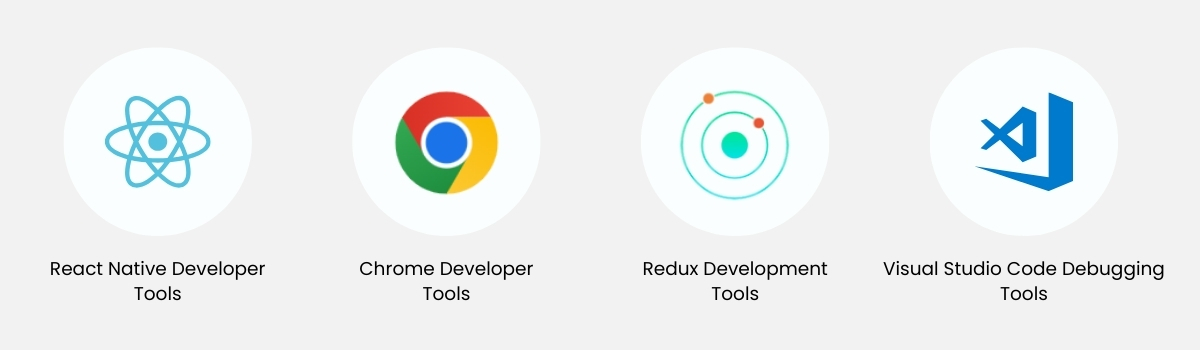
When you have the correct debugging tools available to you, debugging a React Application can be significantly simplified. The following tools are among the best for obtaining a detailed picture of how a React application behaves—including insight into state management, application performance, etc.
React Native Developer Tools
React Developer Tools are an excellent debugging tool for React developers, as they were created specifically for the application framework. As a React Developer, you can quickly develop an understanding of what your React App is doing when using this tool. You can view the component hierarchy, evaluate props and state real-time, and track how your components update. These features make resolving issues relating to data flow and undesired re-renders relatively simple, which are frequent issues for most React developers.
Chrome Developer Tools
Chrome Developer Tools are a tool that every web developer uses, due to the many functions it provides. By providing the ability to debug JavaScript errors, analyze network requests, and monitor performance, Chrome Developer Tools allow users to implement multiple avenues to resolve runtime errors in their code, if any exist. Using Chrome Developer Tools also provides developers with a means of inspecting variables and tracking code manually, and thus forcing them to understand how their React application will behave when running in a browser.
Redux Development Tools
For any application that is utilizing Redux as its state-management solution, the use of Redux DevTools is key to providing the developer a full snapshot of the application’s state, as well as tracking all actions that modify the application’s state. The inclusion of time-travel debugging is one of the most powerful features of Redux DevTools because it gives developers the ability to navigate backwards and forwards through all application states to find exactly where things went wrong—the ability to debug state has never been easier than it is with Redux DevTools.
Visual Studio Code Debugging Tools
Same for VS Code Debugger; it is completely integrated into the development environment, offering the developer the ability to set breakpoints, step through code and inspect variables without ever leaving the editor. Additionally, VS Code Debugger offers the ability to debug both frontend and backend code, making it a very powerful tool in terms of full-stack development.
Together, Redux DevTools and VS Code Debugger cover all aspects of debugging— from debugging at the component level all the way up to debugging global state management and runtime errors—making them crucial to the React JS development process and ensuring that developers can efficiently and accurately develop applications with React JS.
Read more about – Top React Libraries to Speed Up Your Development
Best Practices for Debugging
- Write neat, modular code.
- Add appropriate error boundaries.
- Test individual components.
- Keep up-to-date with dependencies.

Need Expert React JS Help?
Boost your app performance with our expert React development, debugging, and optimization services. Let’s build faster, smarter, and scalable solutions together!
Frequently Asked Questions
Using React Developer Tools and browser DevTools together is the most effective approach.
Errors usually happen due to incorrect state management, props handling, or API issues.
Use structured logging, breakpoints, and debugging tools to identify issues faster.
They are components that catch JavaScript errors and display fallback UI.
React Developer Tools is simple and beginner-friendly.
Written by: Empirical Edge Team